


Photo Collage - Frame & Editor
4.432.00 Reviews
App Specs
- Version
- 1.2.3
- Updated On
- License
- Free
- Downloads
- 100,000+
- Developer
- Azura Mobile Apps
- Categories
- Photography
- Platform
- Android
Screenshots
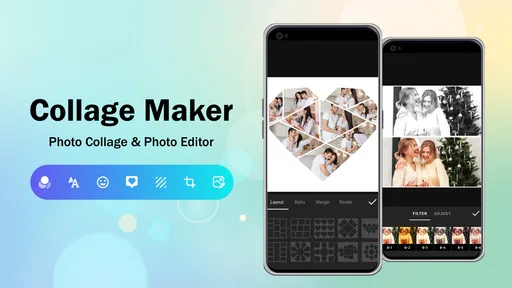
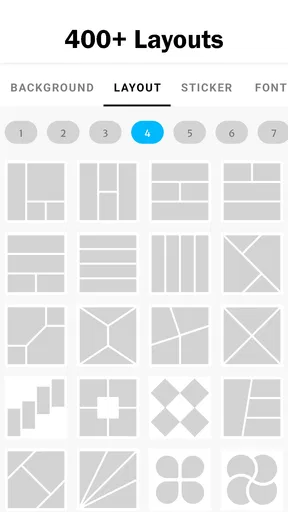
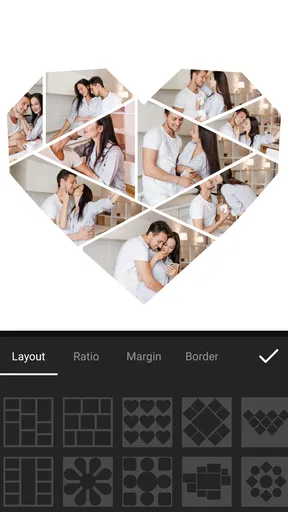
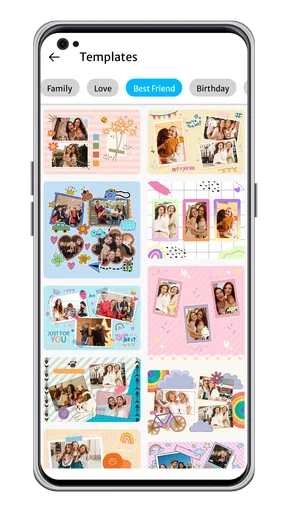
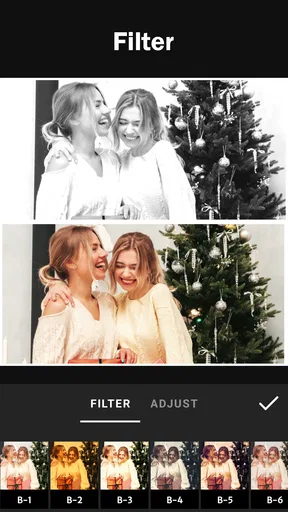
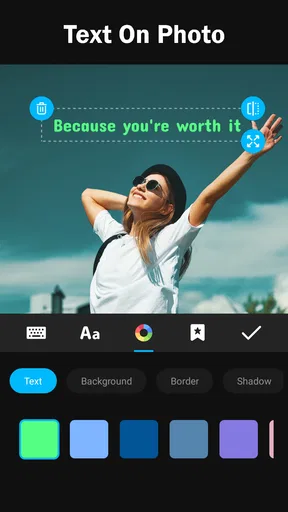
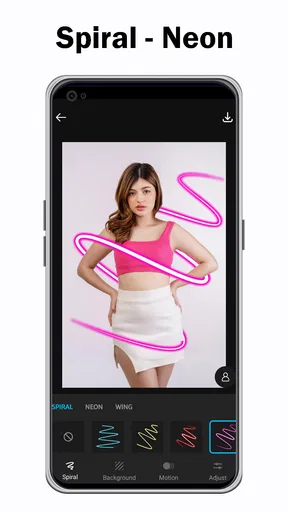
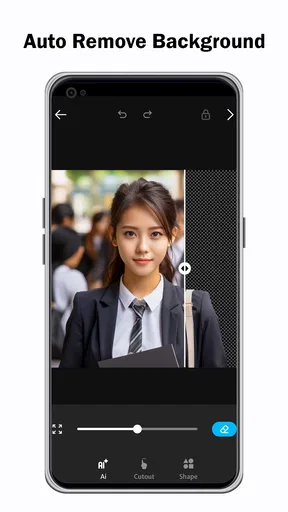
 Analysis by AppCompare
I use collage apps when I want a group of photos to tell one small story without opening a full desktop editor. Photo Collage - Frame & Editor is built for that exact moment: choosing several images, arranging them in a frame, making quick visual adjustments, and sharing the finished result. It is a free photography app from Azura Mobile Apps, and its simple purpose is also its main appeal. I do not have to learn a complicated timeline or search through a professional editing workspace before I can make something presentable.
After spending time with it, I see it as a practical choice for casual photo layouts rather than a replacement for a complete photo-editing suite. The experience is aimed at speed and accessibility, with an Everyone content rating and support for devices running Android 8.0 or later. That makes it approachable for families, students, casual creators, and anyone who wants a neat image for a message or social post without turning the task into a project.
How the current version feels in everyday use
The current release is version 1.2.3, and the app has already reached more than one hundred thousand installs. Its average rating is 4.4 from roughly one thousand ratings, which suggests that the basic workflow is working well for many people. I would not treat that score as a guarantee for every phone, but it does match my overall impression: the app is easy to understand, and its central job is clear from the first use.
I like that the experience is organized around the finished image rather than around a long list of editing tools. A collage normally starts with a simple decision: which pictures belong together? Once I have made that choice, the useful work is adjusting the relationship between them. A good frame should give each image enough room, keep faces from being awkwardly cropped, and create a visual rhythm instead of looking like a random grid. This app is most valuable when I treat those choices as the creative part, not as something the layout should decide entirely for me.
For a quick birthday message, a weekend recap, a small product showcase, or a before-and-after comparison, the format makes sense. One image can be attractive, but several images in a single composition can communicate context much faster. I can imagine using it after a family outing: select a wide scene, a close-up detail, and one candid portrait, then place them together so the recipient gets the feeling of the day without opening a gallery full of separate files.
The free price lowers the barrier to trying it. There are in-app purchases ranging from about two dollars and forty-nine cents to nearly eight dollars per item, so I would still check the purchase screen carefully before committing to anything beyond the basic experience. For someone who only needs occasional collages, the free starting point may be enough. A frequent user should decide whether the extra options genuinely improve their workflow rather than buying simply because a particular frame or editing element looks attractive in the moment.
What makes the workflow useful
The strongest part of this kind of app is the reduction of friction. I do not need to export each photo separately, open a second design tool, and then rebuild the composition from scratch. The collage itself becomes the working canvas. That is especially useful on a phone, where switching between apps can make a small creative task feel unnecessarily slow.
Worth Reading Before You Choose

EA SPORTS FC Mobile 26 Is a Bigger Football Game, but It Takes Time

Flipboard Shows What News Apps Must Do Beyond the Feed

Switching to Android Auto Means Rethinking Your Driving Routine

Google Calendar Makes a Crowded Week Easier to Manage

Ludo King Makes the Most of the Minutes Between Plans

Baby Panda World Brings Quick Play to Modern Phones, but Its Game Library Feels Busy
My first practical tip is to choose the photos in a rough order before experimenting with the frame. If the most important image is selected last, it can be easy to give it too little space or place it where the eye does not naturally land. I prefer to identify the main picture first, then use supporting images around it. This is not a button or hidden setting; it is a workflow habit that makes the app’s layout tools more effective.
A second useful approach is to create two versions of the same idea: one tight collage with only the strongest images and another with more visual context. The tighter version is usually better for a quick share, while the broader one can work as a personal memory or a small event recap. The app is quick enough for this comparison, and seeing both versions helps me avoid filling every available space just because the frame allows it.
I also pay attention to image orientation. Mixing several portrait photos with a landscape image can make a composition feel unbalanced, especially when the main subject is near an edge. Before finalizing a frame, I check whether faces, signs, or important objects sit too close to a crop. This is one of the most important trade-offs in a collage maker: a decorative layout may look appealing in a preview, but a simpler arrangement can preserve the photographs better.
Editing for a coherent result, not just a busy one
The editing side is useful when it supports the collage rather than competing with it. I generally make the photos feel related before adding anything decorative. Similar brightness and color mood can make pictures from different moments appear to belong together. If one image is very dark and another is extremely bright, the collage may look uneven even when the frame itself is attractive.
This is where I think beginners benefit from restraint. It is tempting to keep changing frames, adding visual treatment, and adjusting every picture independently. I get better results when I decide on one clear purpose first: a clean memory board, a playful greeting, or a comparison layout. The app gives me a fast way to explore those directions, but it cannot decide which story the images should tell.
There is also a practical reason to avoid over-editing: the more attention I give to borders and decoration, the less attention I give to the photographs. For family images, I prefer a layout that leaves faces readable. For food or travel pictures, I can accept a more graphic arrangement because the subject is often easier to recognize at a smaller size. That difference matters when deciding whether the app is being used for communication or for visual experimentation.
One less obvious use is preparing a compact reference image. I can place several screenshots, notes, or visual examples into one composition so that I do not have to send a long sequence of separate files. A student might use that approach for a mood board, while a small seller could combine views of an item into one shareable image. I would still use a more specialized design tool for a formal presentation, but this app is convenient when the goal is a quick, understandable visual summary.
How it compares with the usual alternatives
Compared with assembling a collage manually in a general photo editor, this app should feel more direct. A general editor usually gives more control over layers, masks, typography, and detailed retouching, but that flexibility comes with extra decisions. If I only want several pictures arranged cleanly, the dedicated collage approach saves time.
Compared with a social network’s built-in collage feature, a standalone photography app can be more comfortable when I want to prepare the image before choosing where to share it. I can think about the composition separately from the post, message, or story. That separation is useful when the same image may be sent to different people or used in more than one place.
The trade-off is depth. Someone who needs precise alignment, advanced typography, complex background removal, layered graphics, or detailed color correction will probably be happier with a full design or photo-editing application. I would also skip this app if my main goal is professional retouching rather than arranging multiple images. Its value is concentrated in the collage workflow, so it should not be judged as though it were trying to cover every creative task.
It is also not the best choice for a user who wants complete automation. A tool that automatically builds a polished layout from a large photo library may be faster for people who do not want to make composition decisions. Here, I get more benefit when I am willing to choose the images and review the result myself. That small amount of control is a strength for some users and an inconvenience for others.
What changed for existing users
The release history visible through the current version gives existing users a clear reason to keep the app updated, but I prefer to separate that practical fact from speculation. Version 1.2.3 is the version I would evaluate today, and it is the one users should use when comparing their experience with older installations. An update can improve the day-to-day feel even when the main idea remains unchanged, particularly in a utility app where small workflow details matter.
For someone returning after an earlier installation, my advice is to judge the current build by a complete task rather than by opening the app and browsing briefly. Select a realistic group of photos, try a couple of layouts, edit the images enough to make them consistent, and prepare the final share. That reveals more than a quick glance because the real question is whether the app gets out of the way during the entire process.
Existing users should also keep their expectations grounded. A newer version does not automatically turn a focused collage maker into a professional editor. The app’s identity remains its straightforward combination of collage creation, editing, and sharing. If that is the workflow that brought someone to it in the first place, the current release should be considered on those terms rather than compared with tools built for entirely different jobs.
For new users, the most sensible test is a small personal project. I would begin with four or five photos from one event, try a restrained frame, and see whether the controls feel natural. That test answers several important questions at once: whether the selection process suits you, whether the layouts preserve the subjects you care about, and whether the final composition looks better than simply sending the photos separately.
Where the experience still has limits
The focused design that makes the app approachable also creates limits. A collage can only be as good as the relationship between the chosen photos, and a frame cannot repair a weak selection. If the images have unrelated subjects, conflicting lighting, or too many competing focal points, the result may feel crowded. I would rather make a smaller collage with a clear visual idea than use every available space.
Another point of friction is the need to inspect the final crop carefully. Phone screens are small, and a preview that looks acceptable at a glance may hide a cut-off face or an important detail near an edge. I make a habit of enlarging the composition before sharing it. This extra check is especially important for portrait photos and screenshots containing text.
The purchase structure may also affect how different users feel about the app. Because optional items cost from around two dollars and fifty cents to about eight dollars, occasional users may prefer to stay with the free tools, while enthusiastic creators may be tempted by a broader selection. I would not buy several items before establishing a repeatable workflow. First learn whether the basic layouts already solve your needs; only then consider whether a paid addition saves enough time or adds a style you will actually use.
Storage and sharing habits matter too. I treat the collage as a new finished image and keep the original photos separately. That way, I can return to the source pictures if I later want a different arrangement. It is a small but important habit because a collage is a presentation of the originals, not a substitute for them.
Who should use it and who should look elsewhere
I would recommend this app to someone who wants quick, phone-friendly photo collage creation without learning a complicated editor. It suits casual family albums, travel summaries, classroom inspiration boards, simple announcements, and social images that need more context than one photograph can provide. The Everyone rating also makes it a comfortable option to consider for a broad household audience, although each person should still make their own judgement about how they use and share images.
I would be more cautious about recommending it to a professional photographer, a brand designer, or anyone producing print-ready marketing material. Those users usually need exact dimensions, detailed typography, fine layer control, and predictable export options. A dedicated design application is likely to be a better investment for that work. The same is true for advanced retouching: if removing distractions or reshaping a subject is the main task, a collage-focused workflow will feel limited.
It is also a poor fit for people who dislike making visual choices. If you want an application to select the best images, arrange them automatically, and finish the design with almost no input, another kind of tool may be more satisfying. I enjoy the hands-on part, but I know that not everyone wants to spend time comparing frames or checking crops.
What I would watch in future updates
When I look at the app’s next stage, I would pay attention to improvements that protect the simple workflow while giving careful users more control. Better handling of mixed photo orientations, clearer crop previews, and a smoother way to compare layouts would all have practical value. These are the areas that affect whether a collage feels intentional rather than merely assembled.
I would also watch how the editing tools develop around real use cases. The best additions would be the ones that help several photos feel consistent without forcing users through a professional-grade interface. More options are not automatically better; an overcrowded editor could weaken the quick experience that makes this app attractive in the first place.
For now, I see Photo Collage - Frame & Editor as a focused and approachable photography app. Azura Mobile Apps has a clear foundation here: select images, shape them into a visual story, make sensible adjustments, and share the result. My recommendation is strongest for casual creators who value speed and clarity. I would start with the free experience, test it on a real group of photos, and judge it by the final image rather than by the number of available choices.
My final opinion is positive but deliberately specific. This is not the app I would open for demanding retouching or a complex design project. It is the app I would reach for when several photos need to become one clean, useful image in a short session. If that describes your everyday need, the current release is worth trying on a compatible device, and its balance of simplicity, creative control, and optional extras makes it a sensible addition to a casual photo toolkit.
Pros
- Offers many collage layouts for different photo combinations.
- Includes decorative frames
- stickers
- and backgrounds for creative designs.
- Simple editing tools make cropping and resizing easy.
- Supports quick sharing to popular social media platforms.
- Useful for creating greeting cards
- posters
- and personal photo grids.
Cons
- Some designs and editing elements may require in-app purchases.
- Exported images can lose quality at certain sizes or settings.
- The interface may feel crowded when many tools are displayed.
- Ads can interrupt editing
- especially in the free version.
- Advanced photo adjustments are limited compared with professional editors.
FAQs for Photo Collage - Frame & Editor
What is Photo Collage - Frame & Editor used for?
Photo Collage - Frame & Editor is designed for combining multiple pictures into a single creative composition. During testing, its main purpose was to help users arrange photos in grids, apply frames, add backgrounds, and make basic visual adjustments before sharing the finished collage. It can be useful for social media posts, travel memories, family albums, invitations, and simple personal projects without requiring advanced editing experience.
Does Photo Collage - Frame & Editor offer enough layouts and editing tools?
The app generally provides the essential tools expected from a collage editor, including predesigned layouts, adjustable photo positioning, frames, backgrounds, text, stickers, and basic filters or enhancement controls. The exact selection may vary by version and device, but the workflow is straightforward for quick edits. Users looking for professional retouching, advanced layers, or highly precise design controls may find the feature set more limited.
Is Photo Collage - Frame & Editor free to download and use?
The application can typically be downloaded at no initial cost, although free versions of photo editors commonly include advertising, optional purchases, or premium content. Some layouts, decorative elements, export options, or advanced tools may require payment depending on the current release. Before creating many projects, it is worth checking the app-store listing and in-app purchase details so you understand which features are available without upgrading.
Does the app reduce photo quality when saving or sharing collages?
Photo Collage - Frame & Editor is intended for convenient sharing, so it should support saving finished designs to the device and sending them to other apps. However, output resolution and compression can depend on the selected export settings, the original image size, and the app version. For social media, the result should be suitable, but users preparing images for printing should verify the saved file’s dimensions and quality first.
Is Photo Collage - Frame & Editor easy and safe for beginners to use?
The editor is aimed at casual users, and its template-based approach makes it relatively easy to start a project: choose a layout, insert pictures, adjust their position, decorate the design, and save it. Beginners should still review permission requests, advertising behavior, and privacy information before granting access to photos or storage. Avoid importing sensitive images unless you are comfortable with the app’s stated data practices and sharing options.


